
Managing SOLIDWORKS BOM using integrated BOM+
BOM+ functionality can be opened directly from SOLIDWORKS by invoking the corresponding command in the menu or toolbar
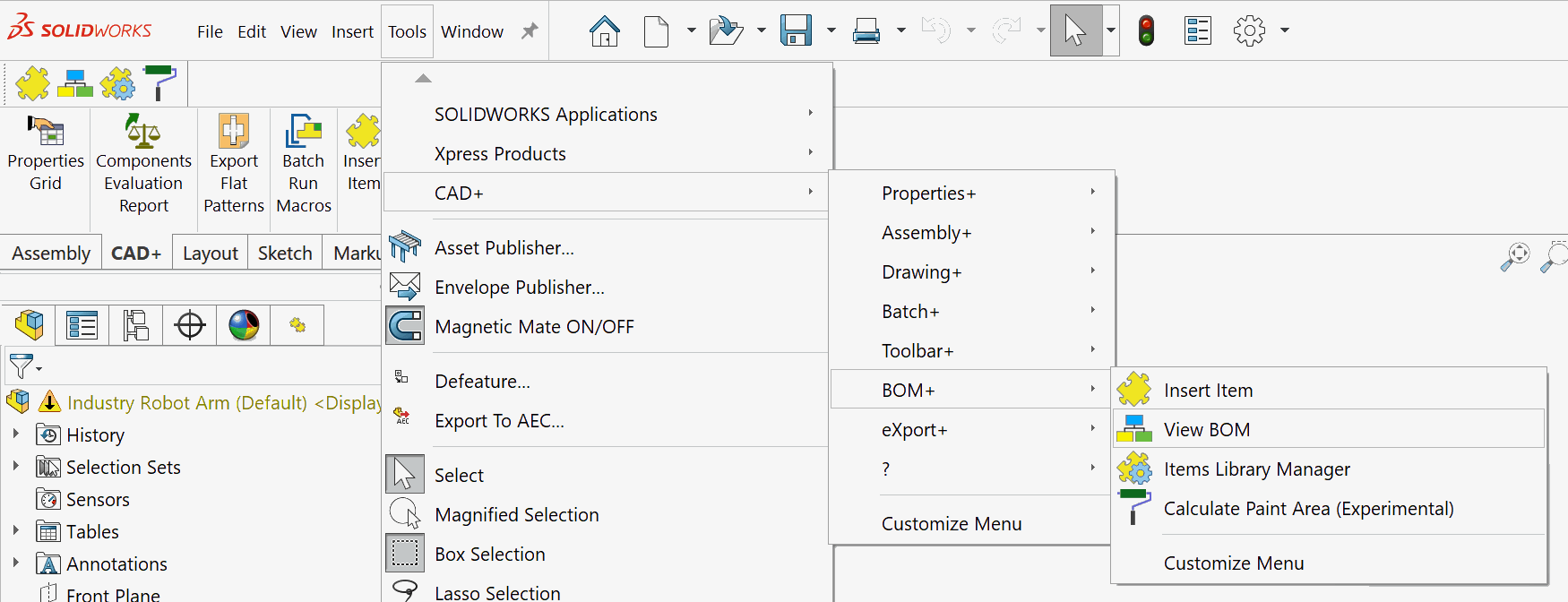
Viewing Bill Of Materials
The Bill Of Materials table can be generated by clicking the View BOM command
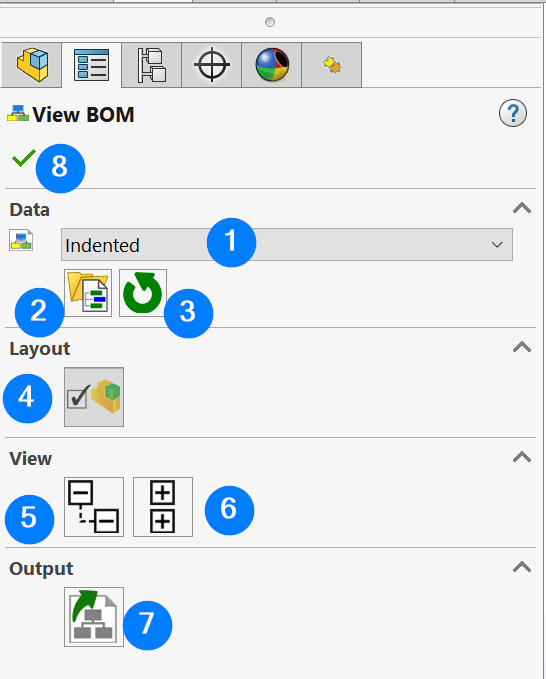
- Bill Of Materials template drop-down
- Open the BOM templates file location
- Reload BOM templates if they were modified
- Toggle to show/hide the root item in the BOM
- Expand all items in the BOM
- Collapse all items in the BOM
- Export current Bill of Materials to external file
- Close Property Manager page
Non-Modeled Items
Non-modeled items can be inserted by clicking the Insert Item command from the menu or toolbar. The Enable Items Environment option in the Library needs to be checked to enable the support for the items.
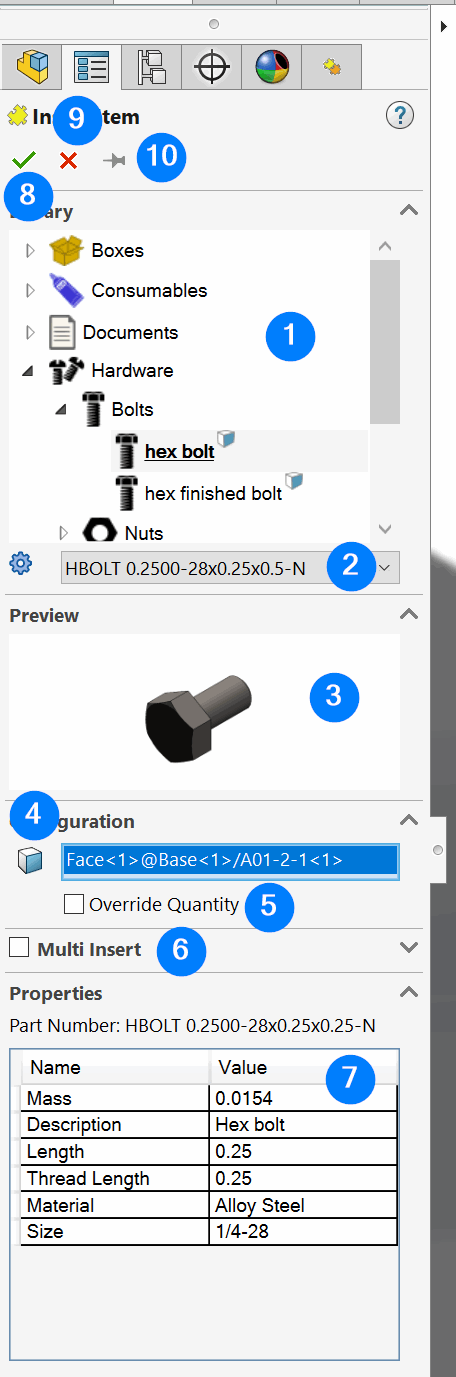
Items Library browser
Item configuration to insert
Item preview
Entity to attach item to. This selection box will consider the filter specified in the item definition
Option to overwrite the quantity of the item
Option to insert multiple items in a single operation. If this option is activated it is possible to select multiple entities to batch insert items and associate with each entity
List of properties of the selected item and configuration
Insert items as per the specified settings
Close the page
Keep the page open after the insertion of the items
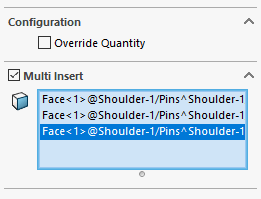
Items are not inserted directly into the Feature Manager tree; instead, they are available in the dedicated Items tab in the Feature Manager panel.
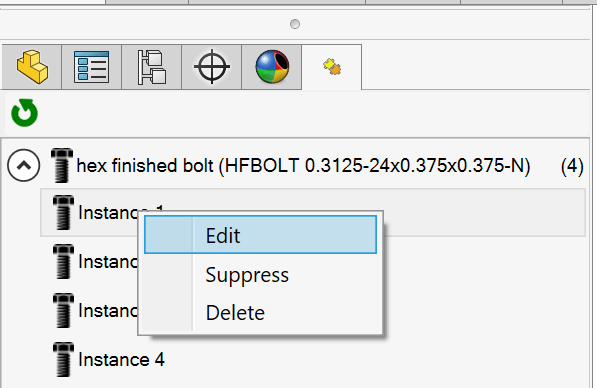
If an item is associated with a SOLIDWORKS entity, it is highlighted when the item is selected.
Item can be edited, removed or suppressed.
Library
Items library can be accessed by clicking the Items Library Manager command.
Library will be displayed in the Task Pane
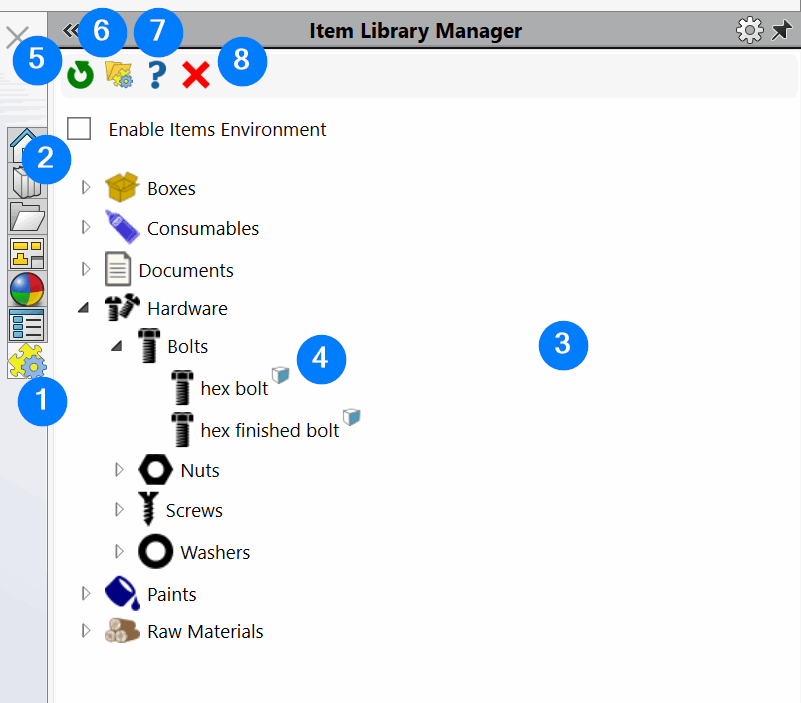
- Task pane tab with items manager
- Items environment enable option
- Library of items
- Item is attached to the entity (e.g. face, body etc.)
- Reload the library if it was modified
- Open the library folder in the Windows File Explorer
- Open help page
- Close the task pane