
Managing SOLIDWORKS non-modeled items library in BOM+
A non-modeled item in BOM+ is defined by a file that contains information about the item (name, preview, properties, configurations, etc.).
A collection of these files forms the library. The library is located in the %localappdata%\Xarial\CADPlusToolset\ItemsLibrary folder
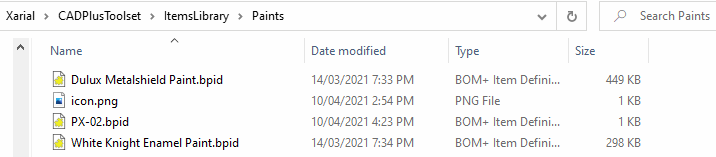
Items can be organized in categories by placing them in the folders and sub-folders.
A custom icon can be assigned to a category by placing an icon.png file in the folder
A new item definition can be created by calling the corresponding command from the context menu in Windows File Explorer
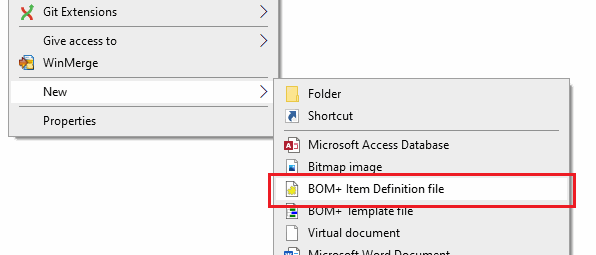
Double click the file to open the item definition editor
Definition Editor
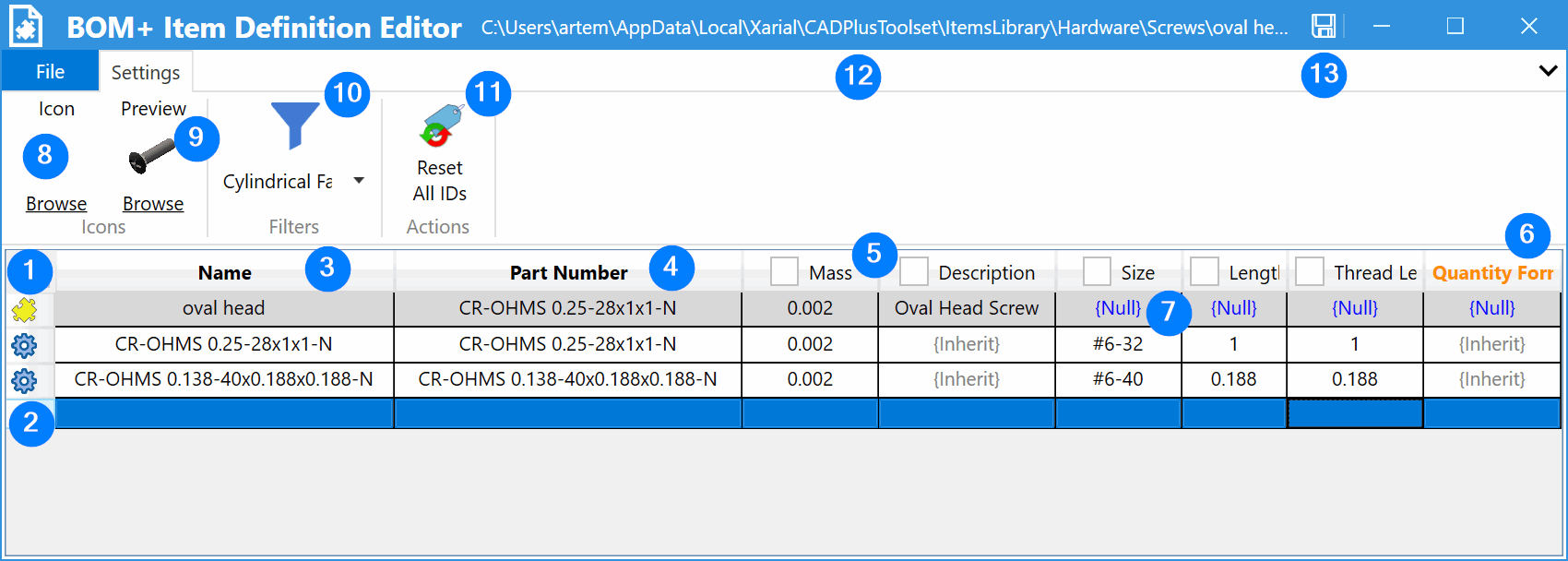
- Row to define default properties for the item
- Row to define configuration (variant) for the item. Any property can be overridden in the configuration
- Column for names for items and configurations
- Part number of the item
- Custom properties for the item. Use the context menu to add or remove properties
- Special column to define the formula to calculate the quantity of the item based on the attached entity
- Property without value (it is assumed that the value is overridden in the configurations)
- Icon of the item to show in the items tree. If not specified - icon of the item category is used.
- Preview of the item to be shown when mouse hovers the item in the library tree and Bill Of Materials
- Filter of accepted entities for this item to be attached to
- Command to reset all internal ids for items. Use this command if the item file has been copied, as each item must have unique ids
- Path to the item file
- Save command to save changes in the current item definition
Backstage
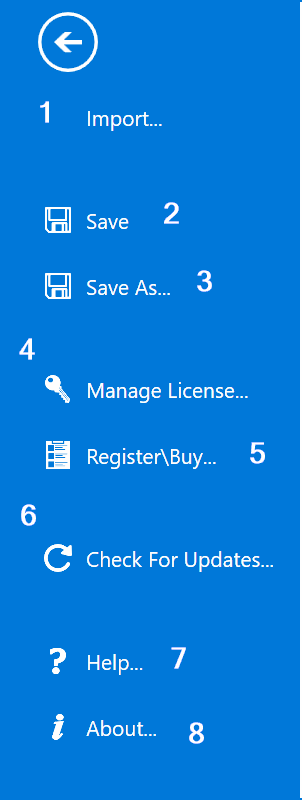
Import data from external file. SOLIDWORKS Part files can be used as an input. In this case all part custom properties and configurations will be converted to the corresponding non-modeled item data.
Save current item definition
Save this item definition as new file
If the file is saved to the same library, the ids need to be regenerated; otherwise an error will occur while loading the library.
Manage license
Register or Buy the copy of CAD+ Toolset
Check for updates (enable/disable auto updates)
Open help page
Open about dialog
Quantity Formula
BOM+ lets you define a dynamic formula for calculating the quantity of an item based on a parameter of the entity it is attached to. The formula cell uses the Expression Box and supports Formulas
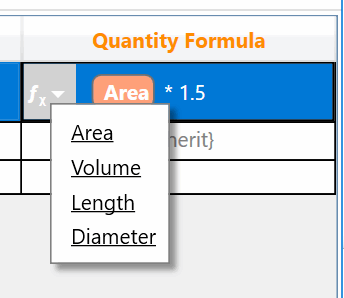
For example, you can use the area of a face to calculate the painting area for a paint item.
Simple mathematical formulas can be used for the calculation.
The following variables can be used in the formula:
- Area - Surface area in m^2 (available for face and body)
- Volume - Solid volume in m^3 (available for body)
- Diameter - Diameter in m (available for circular edge, sketch arc, cylindrical face)
- Length - Length in m (available for edge, sketch segment )