Additional customization for commands in Toolbar+
Commands created with Toolbar+ can be additionally customized using SOLIDWORKS functionality.
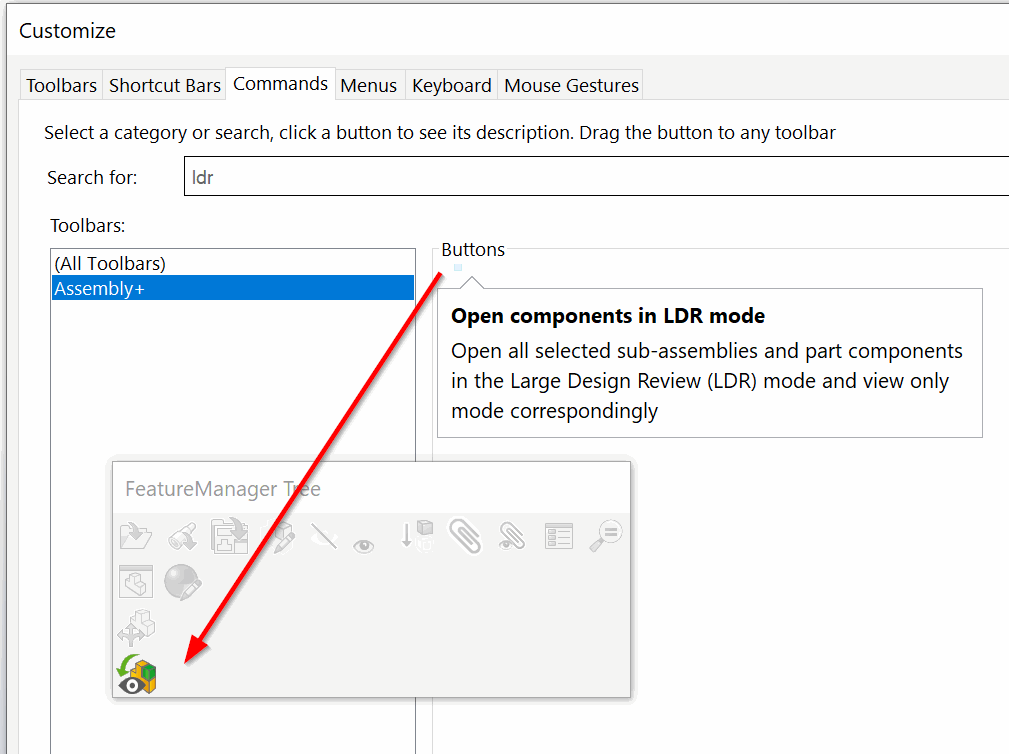
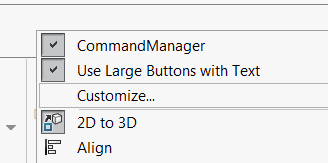
Open the Customize... menu in SOLIDWORKS by clicking the empty space in the toolbar or command manager area.
Assigning shortcuts to commands
To assign a shortcut, navigate to the Keyboard tab and search for the Toolbar+ command (either select the toolbar from the drop-down menus or type the command name):
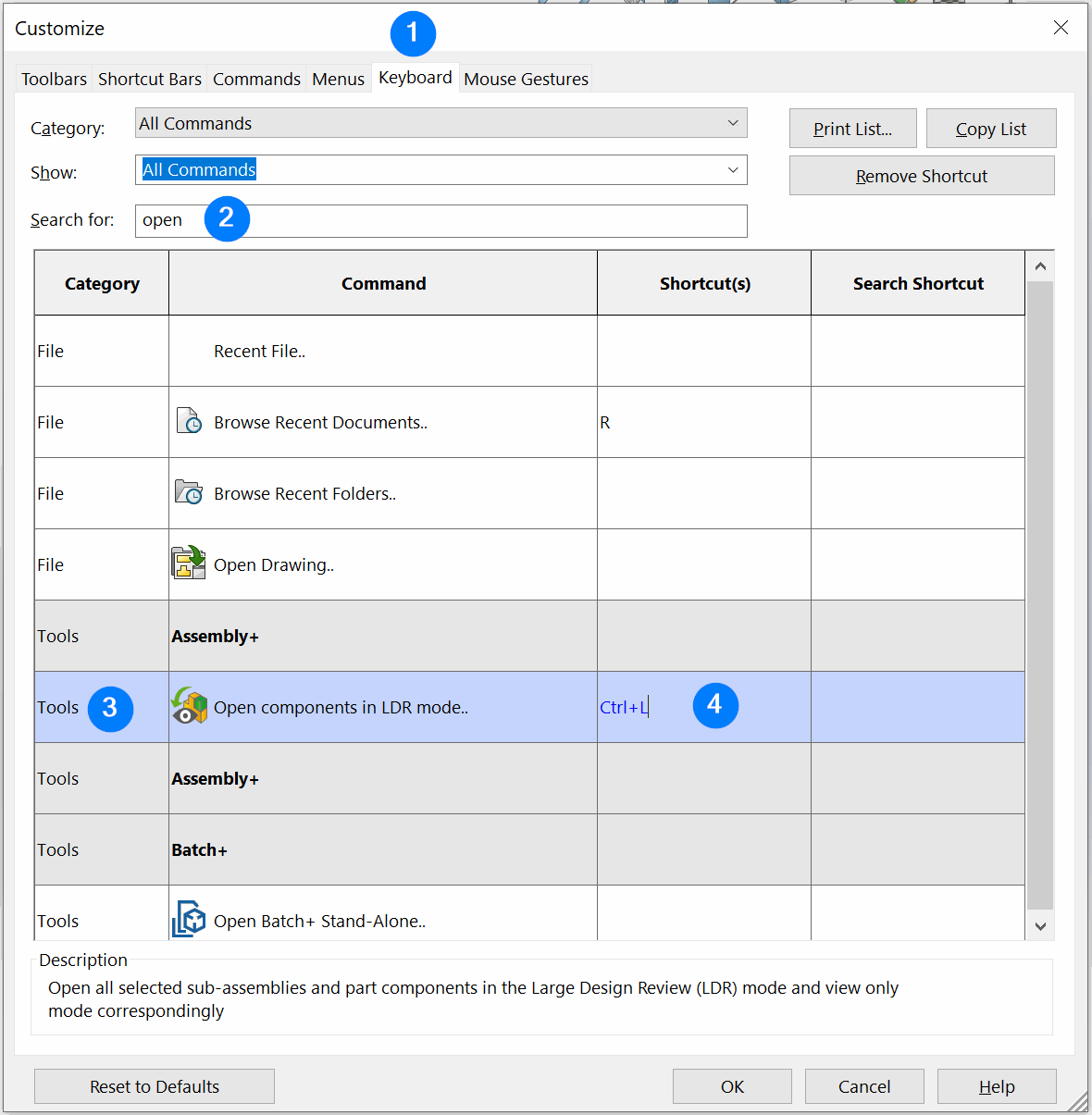
Click on the Shortcut(s) cell and assign the key combination.
Adding commands to command manager tab boxes
Commands created with Toolbar+ can be hosted on any other toolbar or command tab boxes.
Navigate to the toolbar in the Commands tab of the Customize dialog.
Drag-n-drop the required command into the SOLIDWORKS toolbar area (other toolbar or command tab box)
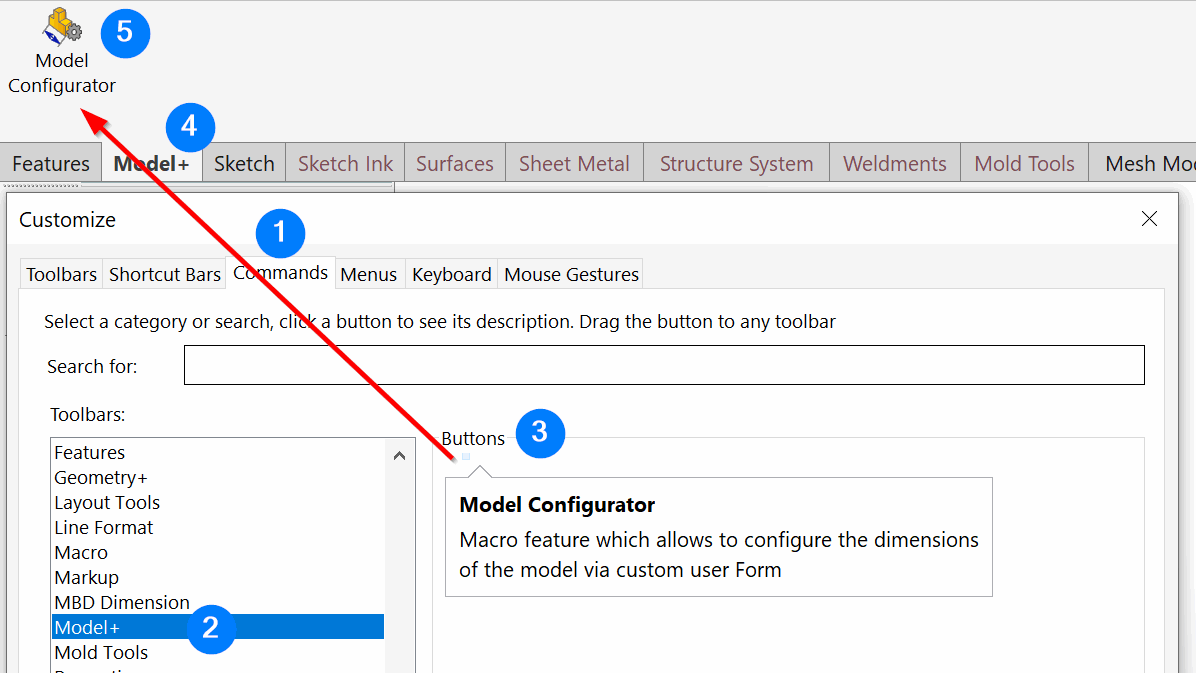
Due to current limitation, the commands are not rendered properly in the Buttons area as shown on the picture below. But still can be dragged onto the toolbar and will function as normal.
Adding commands to context menu
Some commands execute in a selection context (for example, they require preselection of certain objects, such as components).
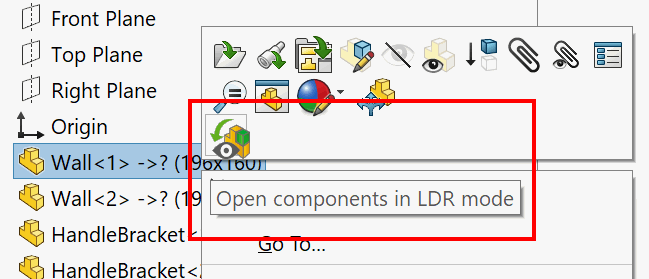
In this case it is beneficial to host the command in a context menu.
To add a command to a context menu, select the target context menu and click Customize...
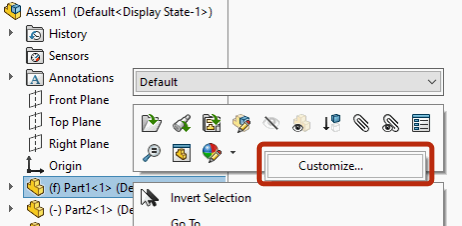
Find the required command and drag-n-drop it to the target position in the context menu.